-
Click the ❶New Playlist button at the top right to open the playlist creation window, where you can create a new playlist.
Playlist Creation and Management
Create Playlists
.png)
.png)
-
Enter a name for the playlist in the Name field.
-
❷Apply Image Transition: A visual effect applied when an image transitions, making the transition between images smooth and natural - scale, fade, flip, or jack-in-the-box.
.png)
-
To add a media file to the playlist from the library window, click the ❸Click to Select button on the media thumbnail or ❹drag the media thumbnail from the library to the playlist window.
-
❺Rearrange playlist playback order: In the playlist window, drag and drop media thumbnails to change the playback order.
-
❻Adjust Playback Time: Use the Up/Down Arrow icons below the media thumbnail to adjust the playback time. (For videos, the playback time is fixed.)
-
You can check the ❼Total Duration Time of the playlist, and by clicking the ❽Preview button, you can simulate playlist playback before sending it to the device.
-
If there is no suitable media in the library, you can upload the desired media directly without navigating to the Media page.
Click the ❾+Upload Media button or drag files from File Explorer to the library area.
Uploaded media can be added to the playlist immediately.
-
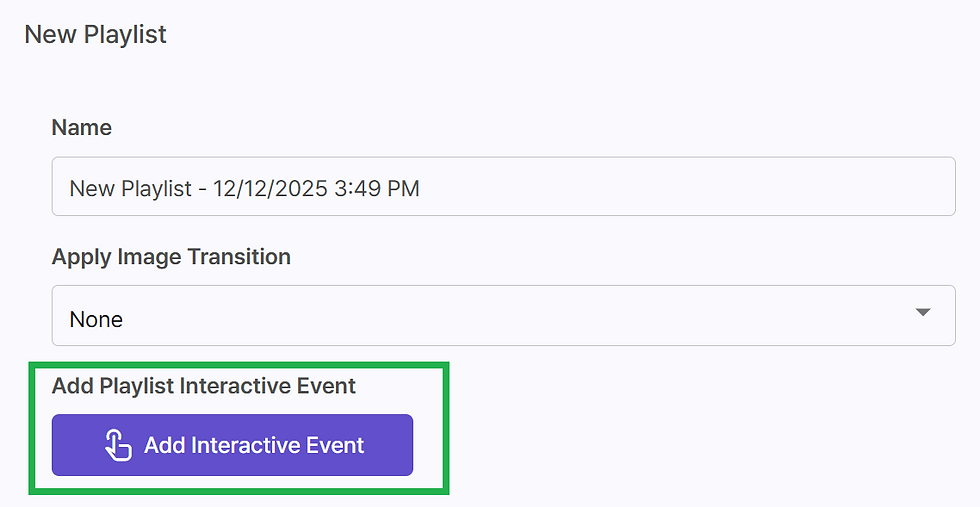
Add Interactive Event: During playlist playback, if an external trigger (e.g., keyboard input, remote control input, facial recognition) occurs, the preconfigured interactive content will play. The playlist will pause during interactive content playback, and once it finishes, resume from where it left off.
-
Click ❿Add Interactive Event to open ⓫the list of available triggers.
-
From the Interactive Event list, select ⓬an existing trigger or click the ⓭Add Trigger/Action button in the top-right corner to open a window where you can create a new trigger event.
.png)
-
Enter the trigger event name, then click the ⓮+Add New Trigger Event button below to configure the detailed settings.
.png)
-
Select ⓯Trigger Type (e.g., keyboard input, remote control input, facial recognition).
-
Configure the conditions and content to execute when the trigger occurs. For example, as shown in the image below, when the ⓰'1' key on the keyboard is pressed, the event will play the assigned content.
-
To add media from the library to the trigger event, click the ⓱Click to Select button on the media thumbnail, or ⓲drag the media thumbnail from the library to the trigger event window.
-
After saving the settings, return to the Interactive Event list and select the trigger event to add to the playlist.
.png)
-
Playlist Thumbnail:
-
⓳Push to Devices Icon: Opens the Device Transfer window, where you can select multiple devices to send this media to. After selecting the devices, click the ⓴Push to Device button at the top right. The selected devices will download the content and start playback once the download is complete.
-
Duplicate icon: Copies the playlist.
-
Delete icon: Removes the playlist.
-
Interactive icon: Indicates that the playlist includes interactive events.
-
Click to Edit button: Used to modify the playlist.
-
Manage Playlists
.png)
.png)


Click to Select


