Quick Start Guide
Requirements
-
Digital Signage Stick, power adapter & cable, remote control.
-
Display: TV or monitor with an HDMI port (HDMI 2.1 recommended for 4K output).
-
HDMI Cable: (The number of HDMI cables varies depending on the number of monitors being connected.)
-
Windows PC — A Windows PC that meets or exceeds the following minimum specifications:
-
2.3 GHz or higher
-
4 GB RAM required
-
Windows 11, 10, 8, 7 (32/64-bit)
-
Hardware Connection
-
Step 1: Plug the Digital Signage Stick directly into the HDMI port of the display.
Tip: Use an HDMI 2.1 port whenever possible for optimal 4K high-definition playback.
-
Step 2: Connect the power. (Option B is highly recommended for stable operation)
-
Option A: Connect to the display's USB port (5V/1A or higher).
-
Option B (Recommended): Connect the power adapter to a wall outlet (prevents infinite rebooting caused by insufficient power).
-
Network Setup & Device Registration
-
Step 1: Press the [Menu] button on the remote to display the top menu.
-
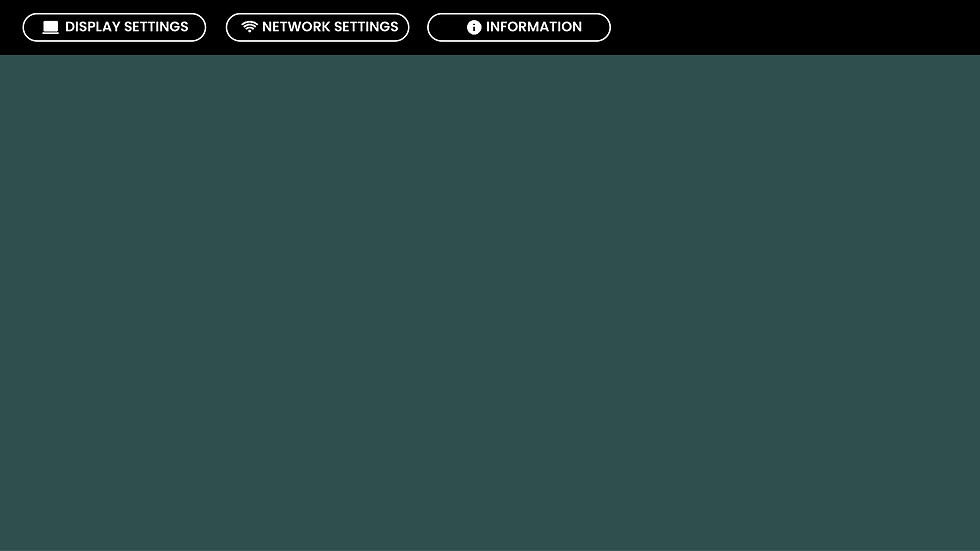
Step 2: Use the [Arrow] buttons to select [NETWORK SETTINGS], then press [OK] to open [Network & Internet].
-
Step 3: Select your Wi-Fi from the list and connect.
-
Step 4: On your management PC, go to https://manager.connectplayer.net.
-
Step 5: Log in and click [New Device].
-
Step 6: Enter the 8-digit Device ID displayed on your screen to complete the registration.


.png)
.png)

.png)
Upload Media Files
-
Step 1 : Click New Media to open the upload window.
-
Step 2 : Drag files from File Explorer into the media page.
-
Step 3 : Click Upload.
-
Step 4 : Once uploaded, the media files appear. Click the Push to Device icon to open the Device Transfer window, where you can select a device to send the media to.
-
Step 5 : Click Push to Device. The selected device downloads the content and starts playback once the download is complete.

.png)
Step 6
Step 4
Step 5
Step 1
Step 1
Step 1
Step 1
Step 1


[Option A]
[Option B]
Step 1
Step 1
Step 2
Step 2

Step 1
Step 2
Step 3