Media Upload
How to Upload Media Files
-
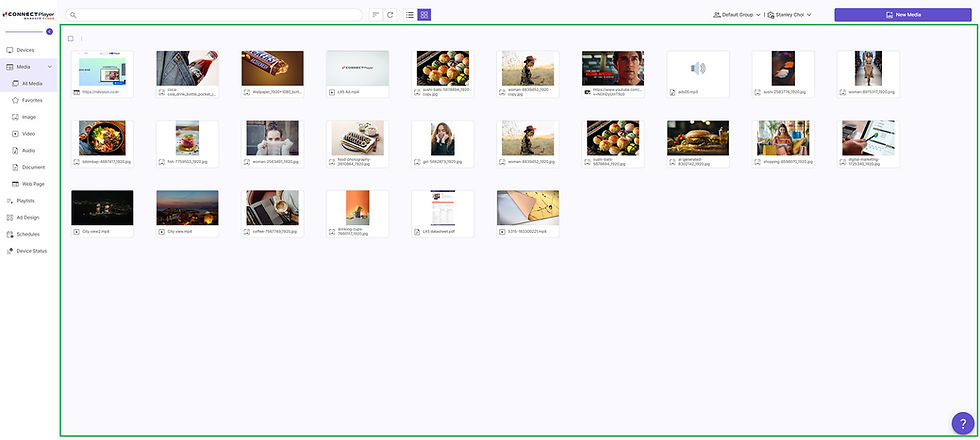
Option 1: Click the ➊ Add Media button in the top-right corner of the screen. When the upload window opens, select the desired file from ➋ your PC's file explorer and drag it into the upload area to add it.
-
Option 2: You can also upload a file by dragging it directly onto the Media page without clicking the ➌ Add Media button.
-
You can upload multiple files at once in supported formats such as JPG, PNG, MP4, and DOC.
-
After selecting your files, click ➍ Upload to begin uploading them.
-
Once the upload is complete, the files will automatically appear on Media page. You can then deploy the files directly to your devices or use them immediately in playlists and layouts.
📌Note: Supported Media File Formats
-
Image files: jpeg, jpg, png
-
Video files: mov, webm, mpg, mpeg
-
Audio files: mp3, wav, ogg
-
Document files: doc, docx, ppt, pptx, xls, xlsx. pdf
.jpg)
➊
.png)

.jpg)

➌
➋
➍
Adding Online Content (YouTube/Web Page)
You can easily register content by entering the YouTube video URL or web page address into the input field at the bottom of the upload window.
-
➎ Copy Link: Copy the YouTube video link or web page address you wish to register from your browser's address bar.
-
➏ Paste: Paste the copied address (Ctrl+V) into the input field of the upload window.
-
➐ Execute Upload: Clicking Upload button will start automatically retrieving the content to the server.
-
Complete: Once the upload is finished, the content will automatically appear on Media page.

➎

➐
➏


Products
Use Cases